
How to review an NDA with AI without uploading it
An NDA is usually the first document in a deal. It lands in your inbox before anything is announced, and it names the parties, sometimes the project, sometimes the reason the two sides are talking at all. That is exactly the information the NDA exists to protect.
So there is an awkward loop in asking a cloud chatbot to review one. To get a second opinion on how your confidential information will be handled, you first hand the document to a third party whose terms you have not negotiated.
This guide shows a different route: reviewing an NDA with AI that runs entirely on your own computer. You get flagged risks on the exact clauses that carry them, plain-language explanations, answers to follow-up questions, and suggested rewrites. The document stays on your disk the whole time.
What you need
- Return, free to download. The free tier runs AI locally with no usage limit and no account. Return runs on macOS and Windows.
- One local AI model, which Return downloads for you in the first step.
- The NDA, as a PDF, Word file (.docx), RTF, ODT or HTML file.
Nothing else to install. There is no separate AI app to set up and no terminal involved.
Keyboard shortcuts below are written for Mac. On Windows, use Ctrl wherever you see Cmd.
Step 1: Download a local model
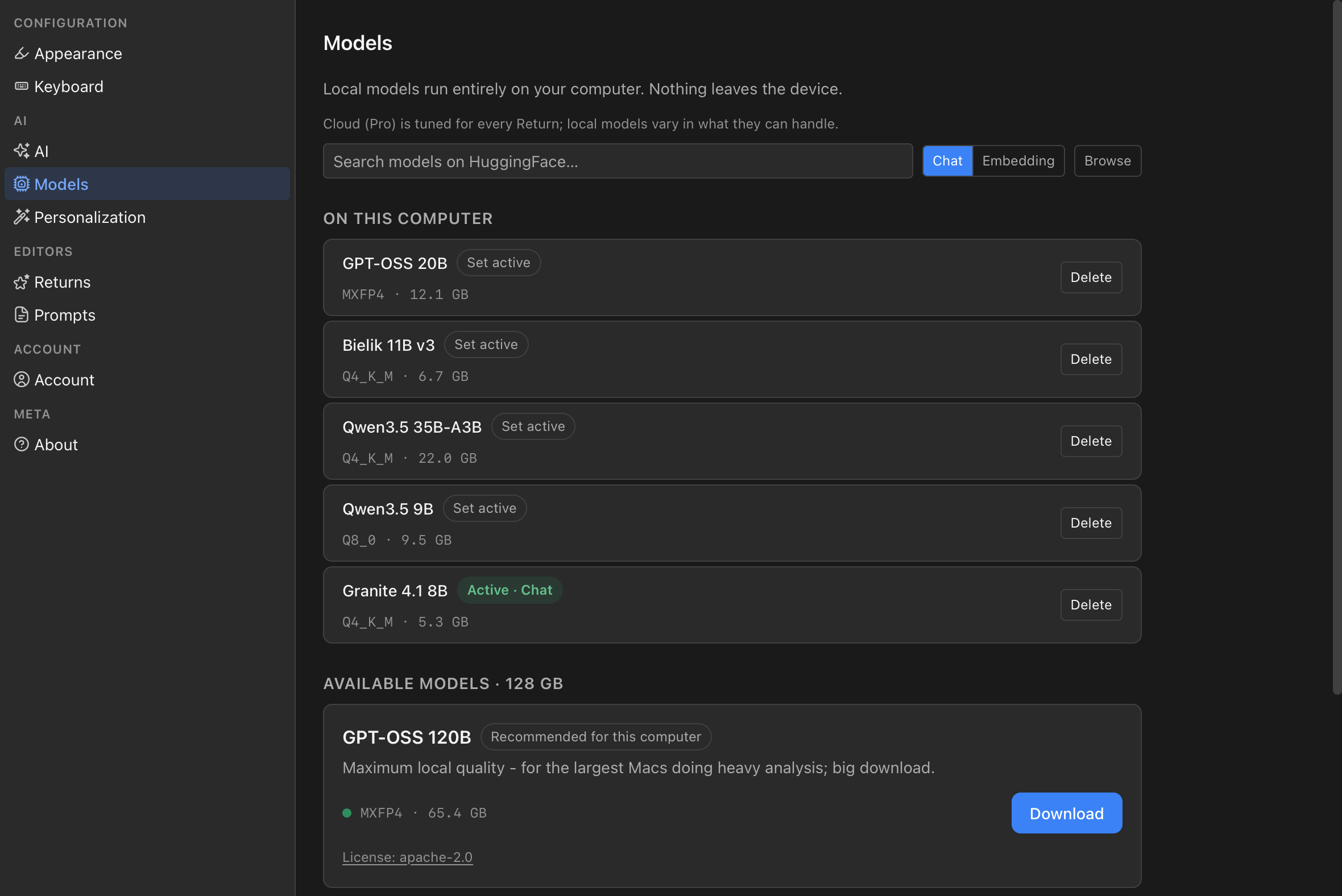
Open Settings (Cmd+,) and go to Models. Return lists a curated set of models tested for document work, each with its download size and a memory indicator showing how comfortably it runs on your computer. One of them is labeled Recommended for this computer, based on how much memory your machine has. If you are unsure, pick that one and click Download.
When it finishes, the model moves to your list of downloaded models and is ready to use.
Then check one setting: in Settings → AI, make sure the mode is Local. That is the default, and it is the setting that makes the rest of this guide true. More on why at the end.
Step 2: Open the NDA
Press Cmd+O and choose the file. It opens as a read-only preview. In the right panel, click Convert to Markdown.
Return converts the NDA to plain text so the AI can read it, and saves the result as a new Markdown file next to the original. If the NDA is acme-nda.pdf, you get acme-nda.md in the same folder. The original PDF or Word file is never modified.
If you prefer to drag the file from your file manager into the Explorer on the left, Return converts it right away and opens the text as a new, unsaved document in that folder. Save it wherever you like.
Take ten seconds to scroll through the converted text. Contracts exported from Word with justified text are notoriously hard to extract correctly, and garbled words would mean the AI reviews garbage. Return rebuilds word boundaries from the layout of the page, but a quick look costs nothing.
Step 3: Run a risk assessment
At the bottom of the right panel, below the chat, is the Quick Actions section. Click Risk Assessment.
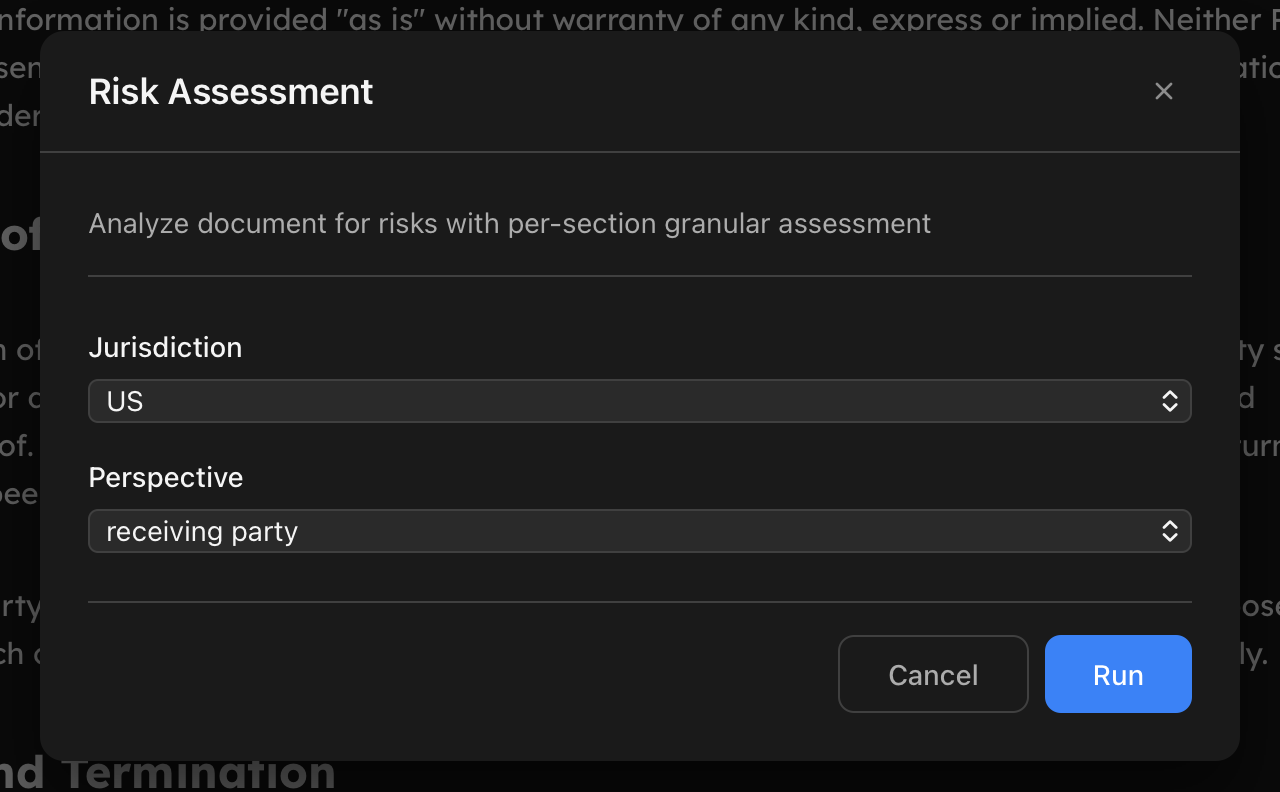
Before it runs, Return asks two questions:
- Jurisdiction: EU, US, UK, International or Polish. Pick the one named in the governing law clause.
- Perspective: receiving party, providing party, or neutral. This matters more for an NDA than for almost any other contract, because the same clause can be harmless to one side and expensive for the other. In a mutual NDA both sides receive information, and the receiving party is usually the more useful lens: that is the side the obligations bite.
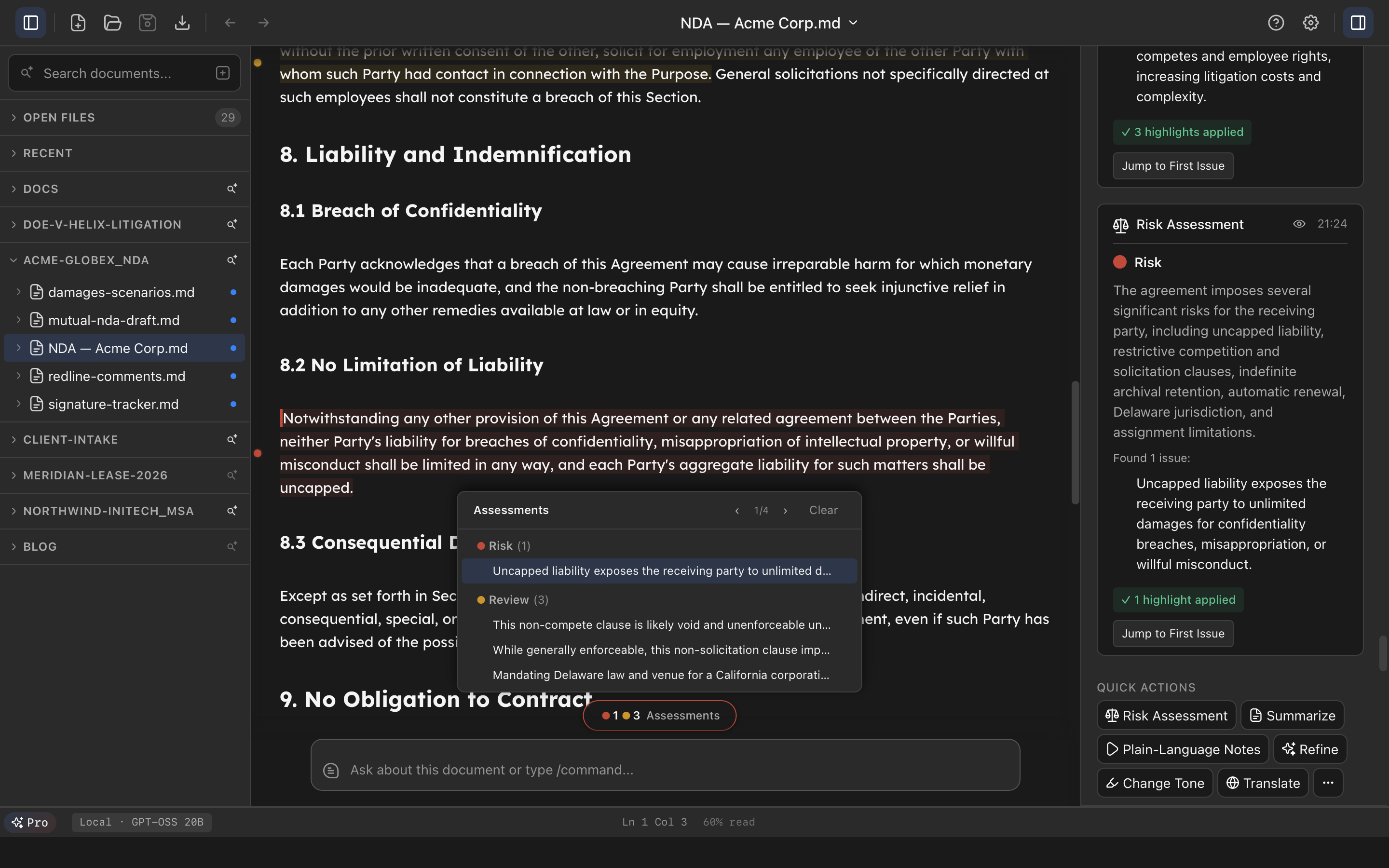
The result comes back in two layers.
At the top, an overall status (Safe, Review or Risk, with a green, yellow or red dot) and a one-sentence summary of the document.
In the document itself, individual flags on the exact passages that raised a concern. Each one appears as a dot in the narrow strip to the left of the text: red for a critical issue, yellow for something that needs attention. Hover a flagged passage to read why it was flagged. Flags can also carry a category (liability, termination, IP, compliance, ambiguity, missing, financial), shown as a small badge in the tooltip, so you can see at a glance what kind of problem it is. Smaller local models sometimes leave it out.
The small indicator between the editor and the input field at the bottom shows how many flags the document has. Click it for the full list and jump to any of them.
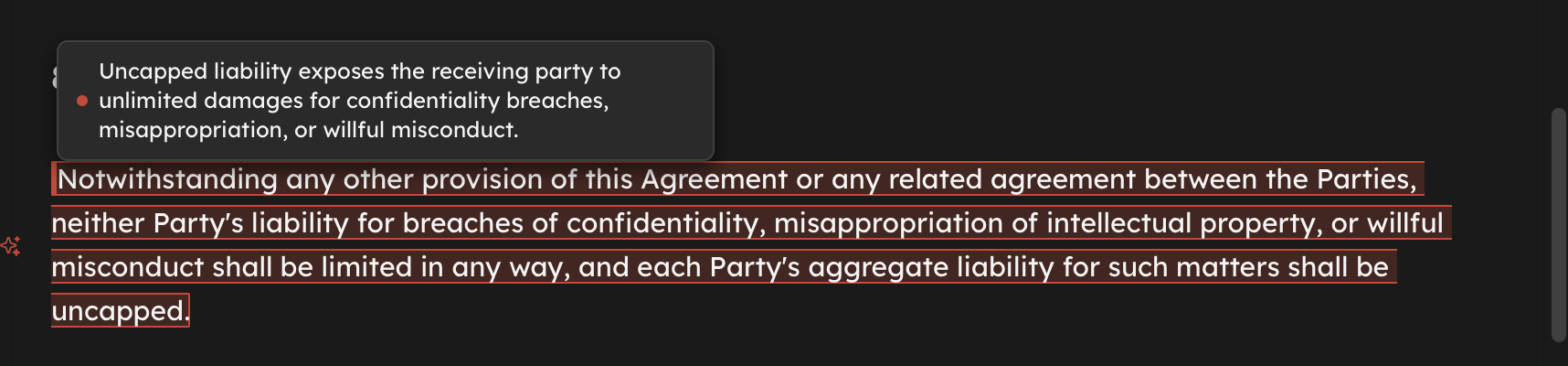
One thing to know about how to read the result: individual clauses are never marked green. The assessment only flags problems, so a clause without a flag is a clause the AI found nothing wrong with, not a clause it approved.
What to look for in an NDA
AI flags are a second pair of eyes, not a replacement for yours. Whatever the assessment returns, these are the parts of an NDA worth checking yourself:
- The definition of confidential information. Is it limited to information marked as confidential, or does it cover everything you ever hear, see or infer? A definition that broad makes compliance close to impossible.
- The exclusions. A standard NDA carves out information that is already public, that you already knew, that you developed independently, or that you received from someone else without restriction. If these are missing, that is a problem, and it is also the hardest kind of problem for any reviewer to spot, human or AI, because there is no sentence to point at. Look for the list. If you cannot find it, that is your answer.
- Duration and survival. How long do the obligations last, and do they survive termination? “Perpetual” is sometimes appropriate for trade secrets and rarely for everything else.
- Who you can tell. Can you share the information with your lawyers, accountants, investors or employees who need to know? Under what conditions?
- Extras that do not belong in an NDA. Non-solicitation of employees, non-compete language, or exclusivity sometimes get tucked into NDAs because nobody reads them closely.
- Remedies. Pre-agreed damages, a waiver of the need to prove harm, or an automatic right to an injunction all raise the stakes of a mistake.
- Return or destruction. What happens to the information when the talks end, and does it include backups and notes?
For long NDAs, and for any contract that splits into sections, Return first extracts the defined terms and shares them with every section it analyzes. A clause on page four that relies on a definition on page one is reviewed with that definition in view.
Step 4: Get the clauses explained in plain language
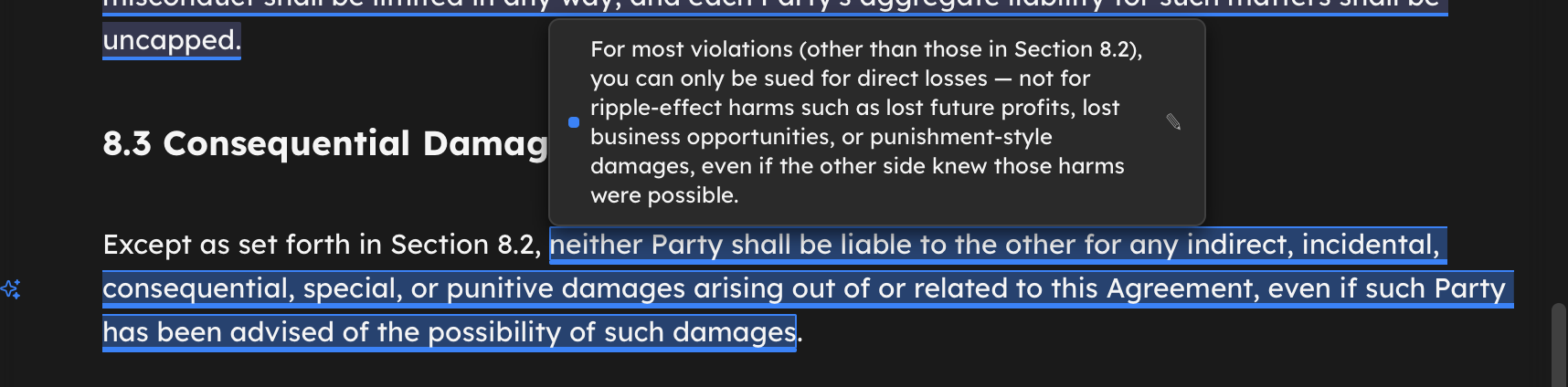
If you are reviewing the NDA for yourself rather than as a lawyer, or you need to walk a client through it, run Plain-Language Notes from the same Quick Actions section.
This one does not judge anything. It finds the dense clauses, jargon and buried obligations and attaches a one or two sentence explanation to each, written for someone without legal training. It is deliberately separate from the risk assessment: one layer tells you what a clause means, the other tells you whether it is a problem.
Step 5: Ask your own questions
Press Cmd+K to jump to the input field at the bottom and ask anything about the document. The answer appears in the chat on the right. Questions that work well for NDAs:
- “How long do my obligations last after the agreement ends?”
- “Can I share this information with potential investors?”
- “Is there anything in here that restricts hiring the other side’s employees?”
- “What happens if I disclose something by accident?”
Each document keeps its own chat history, so the conversation stays attached to this NDA if you come back to it next week.
Step 6: Fix what you disagree with
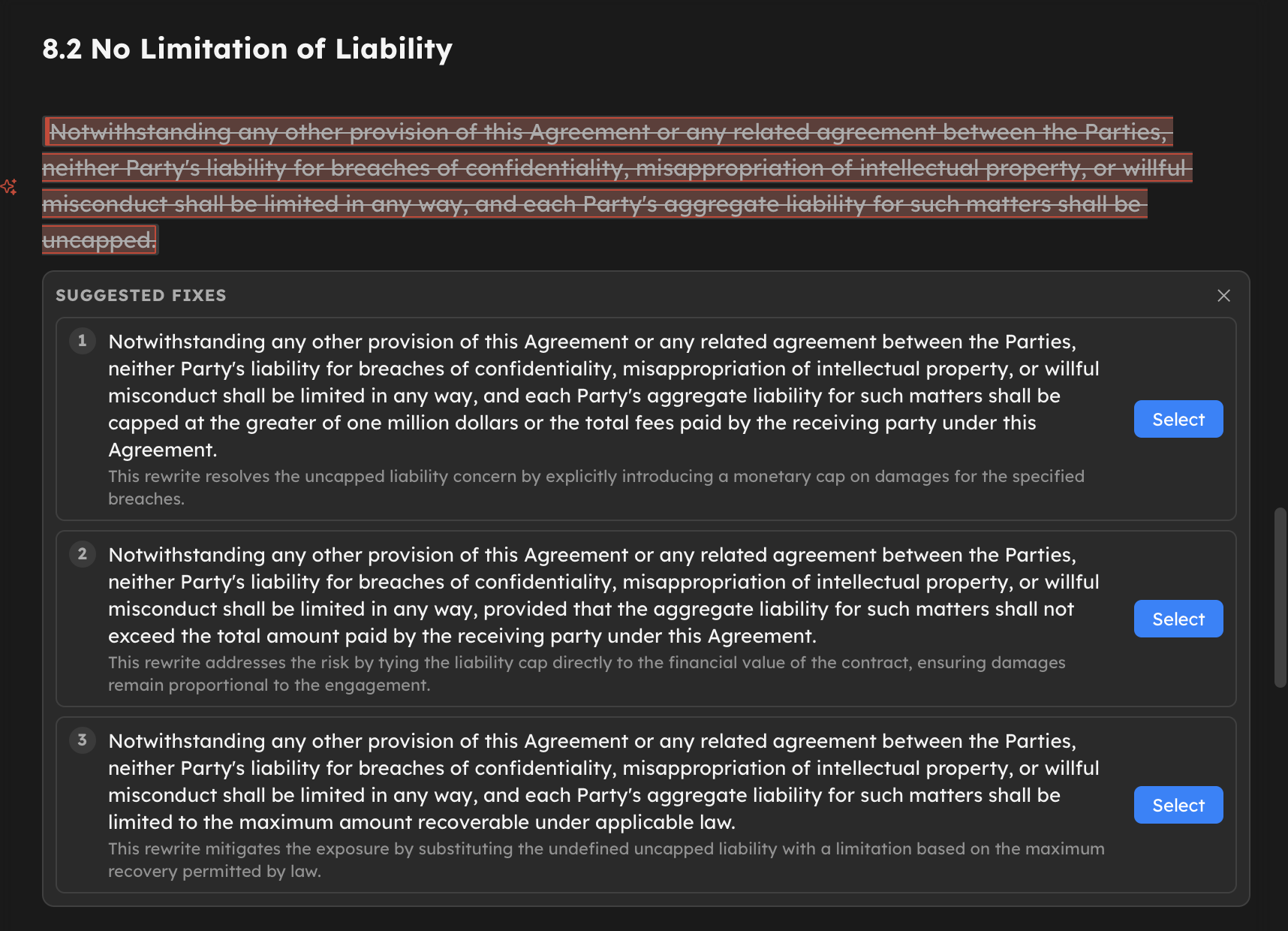
When a flag points at a clause you want to change, click its dot in the gutter or the flagged text itself. Return asks the model for three alternative wordings that resolve that specific concern, best first, and shows them directly under the clause with the original struck through above.
Click the one you want, or press 1, 2 or 3. It replaces the clause as a single edit you can undo. If none of them fit, press Escape and the original stays exactly as it was. The document never changes until you pick something.
Then run the risk assessment again. Clauses you fixed should no longer be flagged. That is your confirmation that the change actually addressed the concern. (Undo brings the old text back but not the flag, which is one more reason to re-run the assessment rather than trust the margin.)
You now have a marked-up version of the NDA to send back as your counterproposal. Export it from the top bar, or type /export in the input field.
Why nothing leaves your computer
Everything above ran on the local AI engine built into Return. The model sits on your disk, runs on your computer’s own hardware, and talks to Return over a connection that never leaves the machine. The only time Local mode touches the network is when you download a model, and that download sends nothing about your documents.
That is why Step 1 asked you to check the mode. Return also has a Cloud mode, on the paid plan, which sends requests to a larger model through Return’s own servers. It is useful for harder analysis, and it is a separate, explicit choice. In Cloud mode your document text does go to those servers, so for a document you do not want to leave your machine, stay in Local.
You do not have to take this on trust. We wrote up why the local engine is built the way it is, including how to check for yourself where the engine’s connections go while it analyzes a document.
What a local model will and will not do
Be realistic about two things.
Local models are smaller than the largest cloud models. On a clean, standard NDA the difference is often small. On an unusual or heavily negotiated one, a local model is more likely to miss a subtle problem or flag something harmless. The flags are a starting point for your judgment, and the checklist above is there for exactly that reason.
And none of this is legal advice. It is a faster and more thorough first pass. If the deal matters, a lawyer should read the NDA, ideally with the flags and notes from this review already in front of them.
Make it yours
Risk Assessment and Plain-Language Notes are Returns: reusable review templates stored as plain files. If you review NDAs often, you can build your own with the exact checks your practice cares about, such as your firm’s preferred confidentiality period or the exclusions you always insist on, and run it with one click on every NDA that comes in. The Returns documentation covers how.